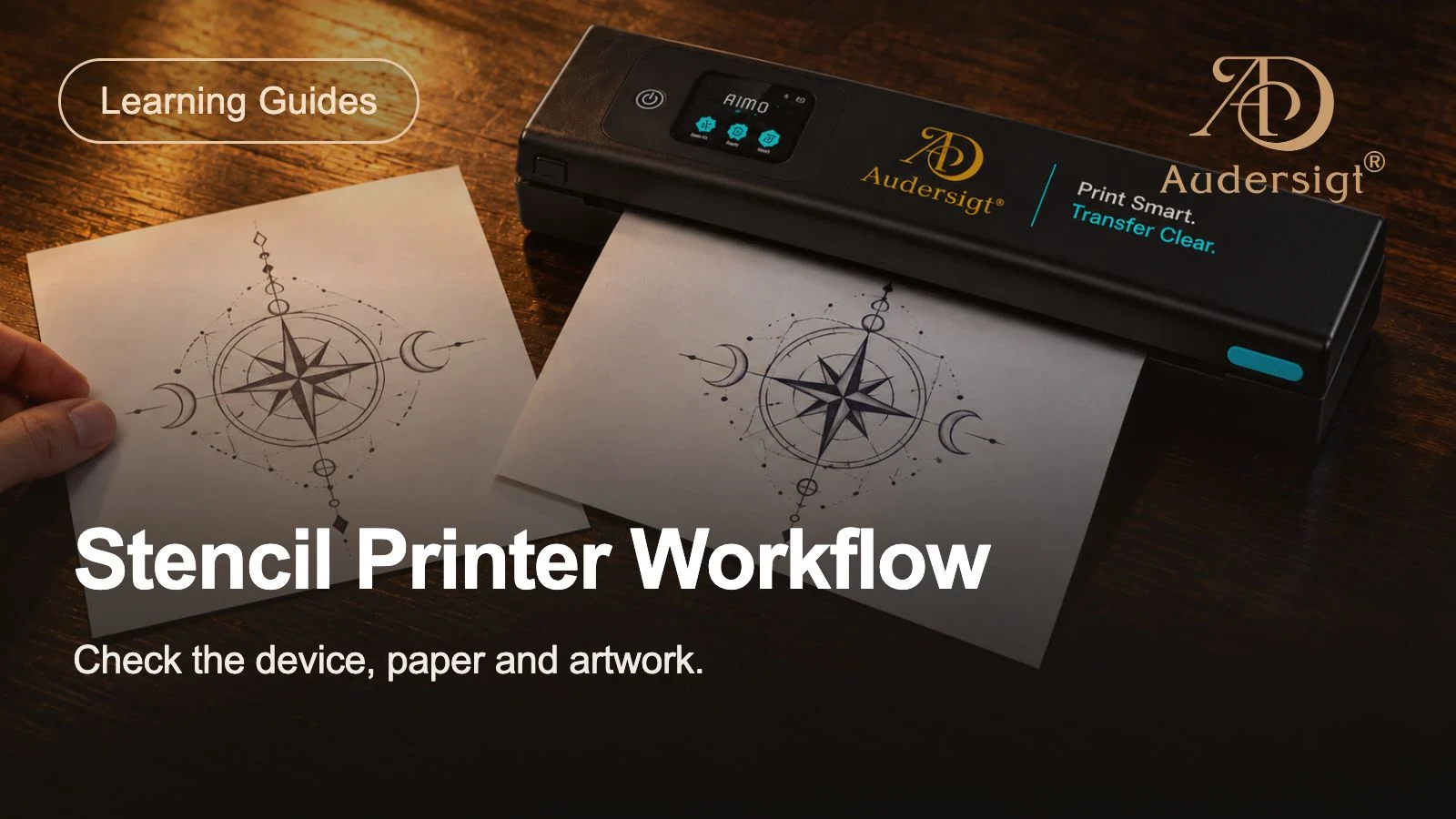
Ein Schablonendrucker ist ein kleiner Teil der Tattoo-Station, kann aber den gesamten Termin beeinflussen. Eine saubere Schablone spart Zeit, reduziert das Neuzeichnen und hilft dem Künstler, mit Zuversicht zu beginnen. Eine schwache oder verzerrte Schablone führt zu Verzögerungen, bevor das Tätowieren überhaupt beginnt.
In diesem Workflow-Leitfaden wird erläutert, wie Sie Thermo-Tattoo-Schablonendrucker, Transferpapier, Bluetooth-Druck und Stationsprüfungen auswählen und verwenden.
Beginnen Sie mit der Bilddatei
Die Qualität der Schablone beginnt bereits vor dem Drucken. Verwenden Sie eine saubere, kontrastreiche Designdatei. Dünne graue Linien, Screenshots mit niedriger Auflösung und komprimierte Bilder können schlecht gedruckt werden. Wenn das Design feine Details aufweist, bereiten Sie eine Schablonenversion mit klarer Linienstärke und ausreichend Abstand für die Größe des Tattoos vor.
Überprüfen Sie vor dem Drucken die endgültige Größe. Ein häufiger Fehler besteht darin, Kunstwerke von einem Telefon aus zu senden, ohne den Maßstab zu bestätigen. Verwenden Sie ein Lineal, eine Tablet-Vorschau oder ein App-Messtool, damit die gedruckte Schablone mit der genehmigten Platzierung übereinstimmt.
Wählen Sie das richtige Thermopapier
Die Qualität des Thermotransferpapiers beeinflusst die Klarheit der Linien und die Übertragungsstärke. Lagern Sie Papier flach, trocken und vor Hitze geschützt. Durch gebogene Blätter, Feuchtigkeit oder altes Papier können fleckige Linien entstehen. Wenn Ihr Drucker Rollenpapier verwendet, halten Sie die Rolle sauber und stellen Sie sicher, dass sie gerade eingezogen wird.
Um konsistente Ergebnisse zu erzielen, testen Sie eine Papiersorte mit Ihrem Drucker und Ihrer Übertragungslösung, bevor Sie die Marke wechseln. Ein Papier, das auf einem Drucker gut funktioniert, kann auf einem anderen Drucker anders eingezogen werden.
Bluetooth- und mobile Druckprüfungen
Bluetooth-Schablonendrucker eignen sich für Reise- und Kompaktstationen. Koppeln Sie vor Terminen den Drucker, bestätigen Sie die App-Verbindung und drucken Sie einen kleinen Test aus. Überprüfen Sie den Batteriestand, wenn der Drucker tragbar ist. Wenn das Gerät USB und Bluetooth unterstützt, bewahren Sie zur Sicherheit ein Kabel in der Nähe auf.
Mobiles Drucken ist praktisch, aber die Telefoneinstellungen können die Ausgabe ändern. Achten Sie auf automatische Skalierung, Seitenränder, gespiegelte Ausgabe und Ausrichtung. Speichern Sie eine wiederholbare Druckvoreinstellung, wenn die App dies zulässt.
Wichtige Druckereinstellungen
Wärmedichte, Geschwindigkeit und Bildmodus können die Schablonenausgabe verändern. Eine höhere Dichte macht die Linien möglicherweise dunkler, aber zu viel Hitze kann Details verwischen oder das Papier überbeanspruchen. Eine geringere Dichte kann dazu führen, dass Details erhalten bleiben, die Übertragung jedoch zu leicht erfolgt.
Verwenden Sie einfache Testblätter für gängige Strichstärken. Bewahren Sie einen Referenzordner mit Einstellungen auf, die für feine Linien, Schriftzüge, geometrische Arbeiten und größere, kräftige Designs geeignet sind. Dies hilft jedem Künstler im Studio, wiederholbare Ergebnisse zu erzielen.
Stationsworkflow
Bewahren Sie Drucker, Papier, Schere, Transferlösung, Handschuhe und Hautvorbereitungsartikel in einer vorhersehbaren Reihenfolge auf. Eine saubere Handhabung ist wichtig, da die Schablonenvorbereitung nah am Kunden und am sterilen Arbeitsablauf erfolgt. Berühren Sie die Transferflächen nicht unnötig.
Überprüfen Sie die Schablone nach dem Drucken, bevor Sie sie auftragen. Suchen Sie nach fehlenden Linien, Verzerrungen, ungleichmäßiger Dichte oder versehentlicher Skalierung. Es ist schneller, vor der Hautvorbereitung noch einmal zu drucken, als eine schlechte Schablone nach dem Platzieren zu reparieren.
Antrag übertragen
Die Hautvorbereitungs- und Übertragungslösung beeinflusst den Halt der Schablone. Vor dem Auftragen der Lösung sollte die Haut sauber und trocken sein. Zu viel Lösung kann die Schablone verschmieren; Zu wenig kann zu einer schwachen Übertragung führen. Lassen Sie die Schablone vor dem Abziehen aushärten und lassen Sie sie vor dem Tätowieren trocknen.
Markieren Sie bei komplexen Teilen die Platzierungshilfen und bestätigen Sie die Ausrichtung mit dem Kunden. Auf gekrümmten Bereichen vorsichtig auftragen, um eine Dehnung des Papiers und eine Verzerrung des Designs zu vermeiden.
Wartung
Halten Sie den Zufuhrweg des Druckers sauber. Staub, Papierrückstände und Klebstoff können zu Linien, übersprungenen Bereichen oder Einzugsproblemen führen. Befolgen Sie die Anweisungen des Druckers zum Reinigen von Thermoköpfen und -walzen. Bewahren Sie tragbare Drucker in einem Koffer auf, wenn Sie zwischen Bahnhöfen oder Tagungen reisen.
Wenn die Ausdrucke blasser werden, überprüfen Sie die Papierausrichtung, den Batteriestand, die Dichteeinstellungen und die Sauberkeit des Thermokopfs. Wenn der Druck schief verläuft, überprüfen Sie den Papierweg und stellen Sie sicher, dass das Blatt oder die Rolle gleichmäßig sitzt.
Thermodrucker oder manuelle Übertragung
Das manuelle Nachzeichnen auf Transferpapier mit einem Hektographenstift funktioniert immer noch und kostet fast nichts, lässt sich aber nicht skalieren. Jede Neuzeichnung kostet den Künstler Zeit, die Reproduktion ist nie exakt und eine Größenänderung bedeutet, von vorne zu beginnen. Ein Thermodrucker wandelt das genehmigte digitale Design in Sekundenschnelle in eine identische Schablone um, druckt sie sofort in einer neuen Größe erneut und liefert das gleiche Ergebnis, egal ob es sich um den ersten oder den fünften Termin des Tages handelt.
Für Studios amortisiert sich der Drucker durch die wiedergewonnene Zeichenzeit innerhalb weniger Wochen. Die manuelle Methode bleibt bei Stromausfällen, Geräteausfällen und freihändig angepassten Designs wissenswert. Hektographenstifte sollten daher auch nach der Digitalisierung in der Schublade aufbewahrt werden.
Schablonenauftragsflüssigkeiten im Vergleich
Die Transferlösungen reichen von leichten, schnell trocknenden Gelen bis hin zu klebrigen Formeln mit langem Halt. Schnell trocknende Produkte eignen sich für kleine Stücke und schnelle Termine: Die Schablone härtet in ein oder zwei Minuten aus, kann aber bei sehr langen Sitzungen abreiben. Formeln mit hoher Klebekraft halten die Linien auch nach einer ganztägigen Anwendung und wiederholtem Abwischen scharf, erfordern jedoch mehr Geduld beim Trocknen, bevor die Nadel die Haut berührt: Ein überstürzter Schritt ist die häufigste Ursache für verschmierte Schablonen.
Welches Produkt auch immer das Studio verwendet, standardisieren Sie es. Das Mischen von Lösungen pro Künstler macht das Verhalten der Schablone unvorhersehbar, und eine Schablone, die sich nach der Hälfte einer Hülsensitzung anhebt, ist weitaus teurer als jeder Unterschied im Flaschenpreis.
Mehrschichtige und großteilige Schablonen
Große Arbeit bringt zwei Probleme mit sich: die Ausrichtung über mehrere Blätter hinweg und das Überleben der Schablone über mehrere Stunden hinweg. Drucken Sie bei Schablonen mit mehreren Blättern Passmarken oder überlappen Sie einen bewussten Streifen des Designs. Bringen Sie zuerst das Ankerblatt an und richten Sie es nach außen hin an den stabilen Bezugspunkten des Körpers und nicht an der Kante des vorherigen Blatts aus. Fotografieren Sie die platzierte Schablone, bevor Sie beginnen: Wenn ein Teil davon spät in der Sitzung weggewischt wird, ist das Foto Ihr Platzierungsprotokoll.
Für Sitzungen, die die Schablone überdauern, arbeiten Sie Zone für Zone: Tätowieren Sie die Strukturlinien eines Bereichs, bevor Sie durch starkes Wischen den nächsten Bereich löschen. Manche Künstler versiegeln stark beanspruchte Zonen mit einer dünnen Barrierefolienschicht bis sie dort ankommen.
Platzierung, Körperkurven und Zustimmung des Kunden
Eine technisch einwandfreie Schablone, die mit zwei Zentimetern Abstand aufgetragen wird, ist immer noch eine misslungene Schablone. Erstellen Sie eine Platzierungsroutine: Positionieren Sie den Kunden in der Haltung, in der das Tattoo am häufigsten zu sehen ist, und nicht flach liegend, da sich die Haut zwischen dem Stehen und der Horizontalen dramatisch verschiebt. Spiegel sind hier wichtiger als die Augen eines Künstlers: Der Kunde stimmt der Platzierung zu, wenn er davor steht, und diese Zustimmung sollte mit einem kurzen Foto vor der ersten Zeile dokumentiert werden.
Die gekrümmte Anatomie verzerrt flache Designs vorhersehbar. Wenn man ein Unterarmband umwickelt, möchte das Schablonenpapier Falten werfen; Schneiden Sie Reliefschlitze in überschüssige Bereiche des Blattes, anstatt das Design selbst zu dehnen. Bei Wirbelsäulen und Brustbeinen das Design zunächst mittig ausrichten und symmetrisch nach außen auftragen. Wenn eine Schablone schlecht aufsitzt, entfernen Sie sie vollständig mit Alkohol, trocknen Sie den Bereich ab und tragen Sie sie erneut frisch auf: Die Platzierung der Schablone „nahe genug“ ist die teuerste Abkürzung beim Tätowieren, da der Fehler dauerhaft wird.
Der hier investierte Zeitaufwand ist gering: fünf zusätzliche Minuten bei der Platzierung gegen ein dauerhaftes Ergebnis. Studios, die diesen Schritt in ihren Arbeitsabläufen formalisieren, mit Körperhaltung, Spiegelgenehmigung und Foto, berichten von weniger Nacharbeiten und weit weniger unangenehmen Gesprächen nach der Heilung.
Kurzreferenz zur Fehlerbehebung
- Schwacher Druck: Überprüfen Sie die Dichteeinstellung, den Batteriestand, die Papierausrichtung und die Sauberkeit des Thermokopfs in dieser Reihenfolge.
- Einseitiges Ausbleichen: Das Papier sitzt nicht gleichmäßig oder Schmutz an einem Ende des Thermokopfs.
- Verschmierter Transfer: zu viel Lösung, nicht genügend Abbindezeit oder Berühren der Schablone vor dem Trocknen.
- Die Schablone löst sich während der Sitzung: Wechseln Sie zu einer Lösung mit höherer Klebekraft, reinigen Sie Hautvorbereitungsrückstände gründlicher und lassen Sie die Schablone länger trocknen.
- Verzerrter Druck: Blockierung des Papierwegs oder Rolleneinzug schief; Laden Sie ein Testblatt neu und führen Sie es aus.
- App druckt in falscher Größe: Deaktivieren Sie die automatische Skalierung, setzen Sie die Ränder auf Null und speichern Sie die Arbeitsvoreinstellung.
Erstellen der Druckvoreinstellungen des Studios
Der Unterschied zwischen einem Studio, das gegen seinen Drucker kämpft, und einem Studio, das nie darüber nachdenkt, ist eine gespeicherte Preset-Bibliothek. Nehmen Sie sich einen Nachmittag Zeit: Drucken Sie dieselben fünf Testdesigns, eine feine Linienschrift, einen kräftigen traditionellen Umriss, ein Dotwork-Mandala, eine Porträtreferenz und ein großformatiges geometrisches Stück in jeweils drei Dichtestufen. Markieren Sie die Gewinner, notieren Sie die Einstellungen und speichern Sie sie in der Druck-App unter Aufgabennamen statt unter Nummern: „feine Linie“, „fette Linien“, „hohe Details“.
Von da an wählt jeder Künstler, auch Gäste, die das Gerät noch nie berührt haben, die Voreinstellung aus, die zu seinem Design passt, und erhält eine Ausgabe nach Hausstandard. Besuchen Sie die Voreinstellungen nur dann erneut, wenn sich die Papiermarke, die Lösung oder der Drucker ändert. Diese einmalige Kalibrierung entfernt die häufigste Schablonenvariable, die dadurch verschlimmert wird, dass jeder Künstler die Einstellungen unabhängig anpasst, und es ist die günstigste Konsistenzverbesserung, die ein Studio durchführen kann.
Häufig gestellte Fragen
**Benötige ich Spezialpapier für einen Thermo-Schablonendrucker?** Ja: Thermokopierer verwenden vierlagiges Thermotransferpapier, kein Tintenstrahl-Schablonenpapier. Sie sind nicht austauschbar und das Durchdrücken des falschen Papiers ist die schnellste Möglichkeit, den Einzugsmechanismus zu blockieren.
**Wie lange sollte eine Schablone vor dem Tätowieren trocknen?** Typischerweise fünf bis zehn Minuten, je nach Lösung und Hautbereich; klebrige Formeln brauchen das längere Ende. Wenn die Schablone immer noch glänzt, ist sie noch nicht fertig.
**Kann ich ein bedrucktes Schablonenblatt wiederverwenden?** Eine scharfe erste Übertragung ist das Ziel; Zweite Anwendungen aus demselben Blatt erscheinen schwächer und dienen nur als grobe Positionshilfen, nicht als Arbeitsschablonen.
Checkliste für den Kauf
- Unterstützt das Papierformat, das Sie am häufigsten verwenden.
- Funktioniert mit Telefon-, Tablet- oder Computer-Workflows.
- Die Bluetooth-Verbindung ist stabil genug für den täglichen Gebrauch.
- Die Druckdichte kann angepasst werden.
- Batterie- oder Stromversorgungskonfiguration passt zum Studio.
- Der Papiereinzug erfolgt gerade und lässt sich leicht nachfüllen.
- Ersatzpapier ist leicht zu beschaffen.
Evidenz, Umfang und Überprüfungsmethode
Wir haben die Felder des aktuellen Audersigt-Katalogs hinsichtlich Druckerkonnektivität, Leistung, unterstütztem Papierformat, Dichtekontrollen, Transferpapier und entsprechendem Stationszubehör verglichen. Timing- und Einstellungsempfehlungen sind Workflow-Ausgangspunkte, die jedes Studio mit seinen eigenen Drucker-, Papier-, Anwendungsprodukt- und Raumbedingungen validieren sollte.
Die OSHA-Ressource zu durch Blut übertragenen Krankheitserregern stellt den arbeitsrechtlichen Rahmen der Vereinigten Staaten für Expositionskontrollen und Arbeitspraktiken in der Nähe von Hautkontaktverfahren bereit. Die FDA-Faktenblatt zu Tätowierungen und Permanent Make-up fasst Überlegungen zu Infektionen, Tinte und Nebenwirkungen zusammen, die den größeren Tattoo-Arbeitsablauf bestimmen.
Wir haben diesen Leitfaden anhand der am 9. August 2026 verfügbaren Katalogdaten überprüft. Jede Live-Produktseite bleibt die Quelle der Wahrheit für aktuelle Konnektivität, Batterie, Papierkompatibilität, enthaltene Teile und Bedienungsanleitungen.
Audersigt gruppiert Schablonendrucker, Transferpapier und Studiozubehör, sodass Künstler einen vollständigen Schablonen-Workflow aufbauen können, anstatt jeden Artikel blind zu kaufen.
Verwandte Ressourcen
Tattoo-SchablonendruckerT08FD-DruckerX6-DruckerHäufige Fragen
Was sollte ich zwischen Tattoo-Schablonendruckern vergleichen?
Vergleichen Sie unterstütztes Papier, maximale Druckbreite, Auflösung, Verbindungsmethoden, Akku, Aufladung, Abmessungen, Bedienelemente, enthaltene Artikel und den tatsächlichen Telefon-, Tablet- oder Computer-Workflow des Studios.
Warum einen Schablonendrucker mit einer bekannten Datei testen?
Eine Datei mit bekannten Linien, Kurven, Abständen und schattierten Details erleichtert den Vergleich von Skalierung, Ausrichtung, Übertragungsklarheit, Papierhandhabung und Wiederholbarkeit, ohne dass die Grafik zwischen den Tests geändert werden muss.
Finden Sie Ihr nächstes Tattoo-Setup
Produkte entdeckenÄhnliche Artikel
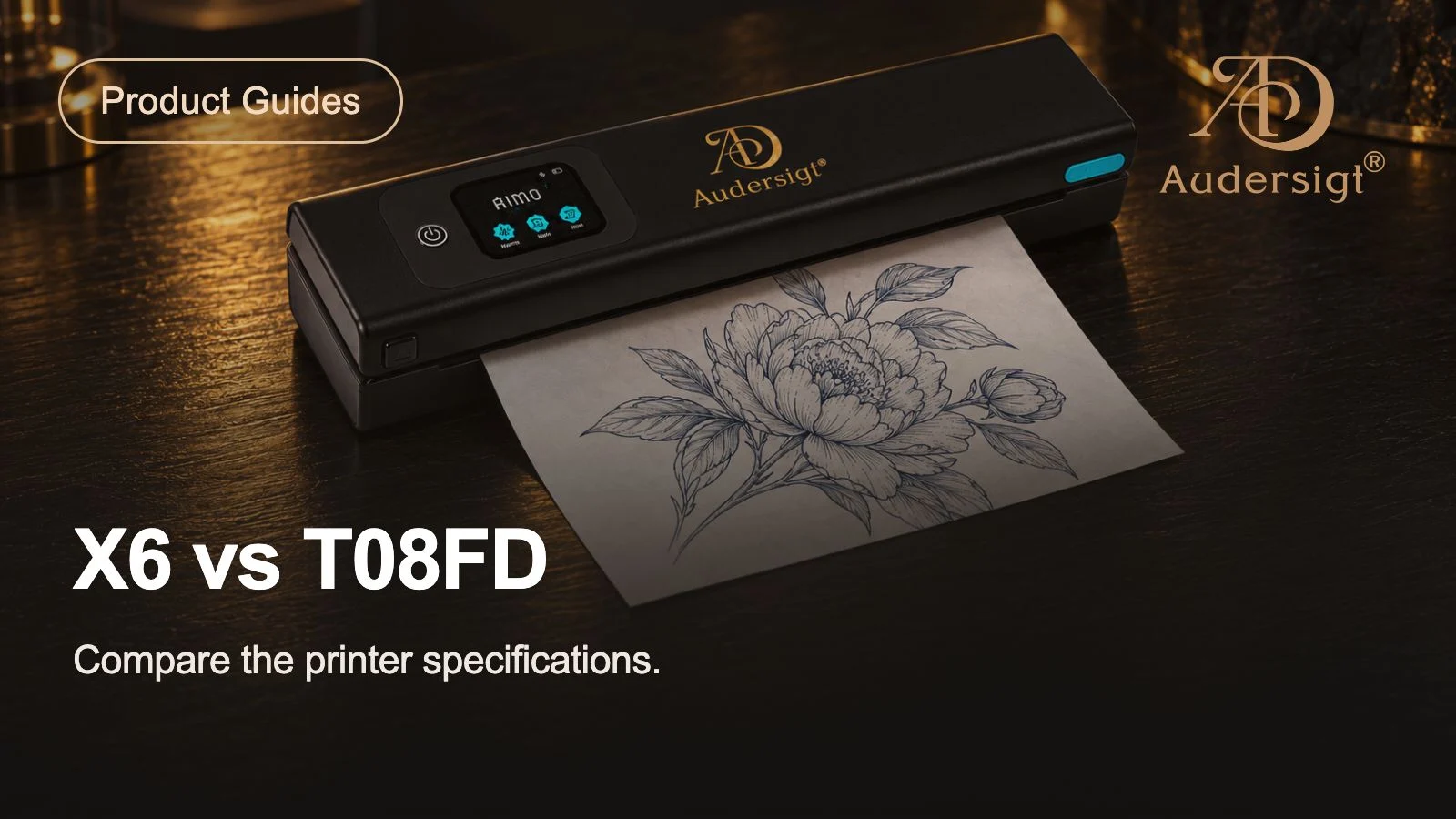
Beste Tattoo-Schablonendrucker: X6 vs. T08FD
Vergleichen Sie die Tattoo-Schablonendrucker Audersigt X6 und T08FD nach Papierunterstützung, Konnektivität, Akku, Bedienelementen, Größe und echtem Studio-Workflow.
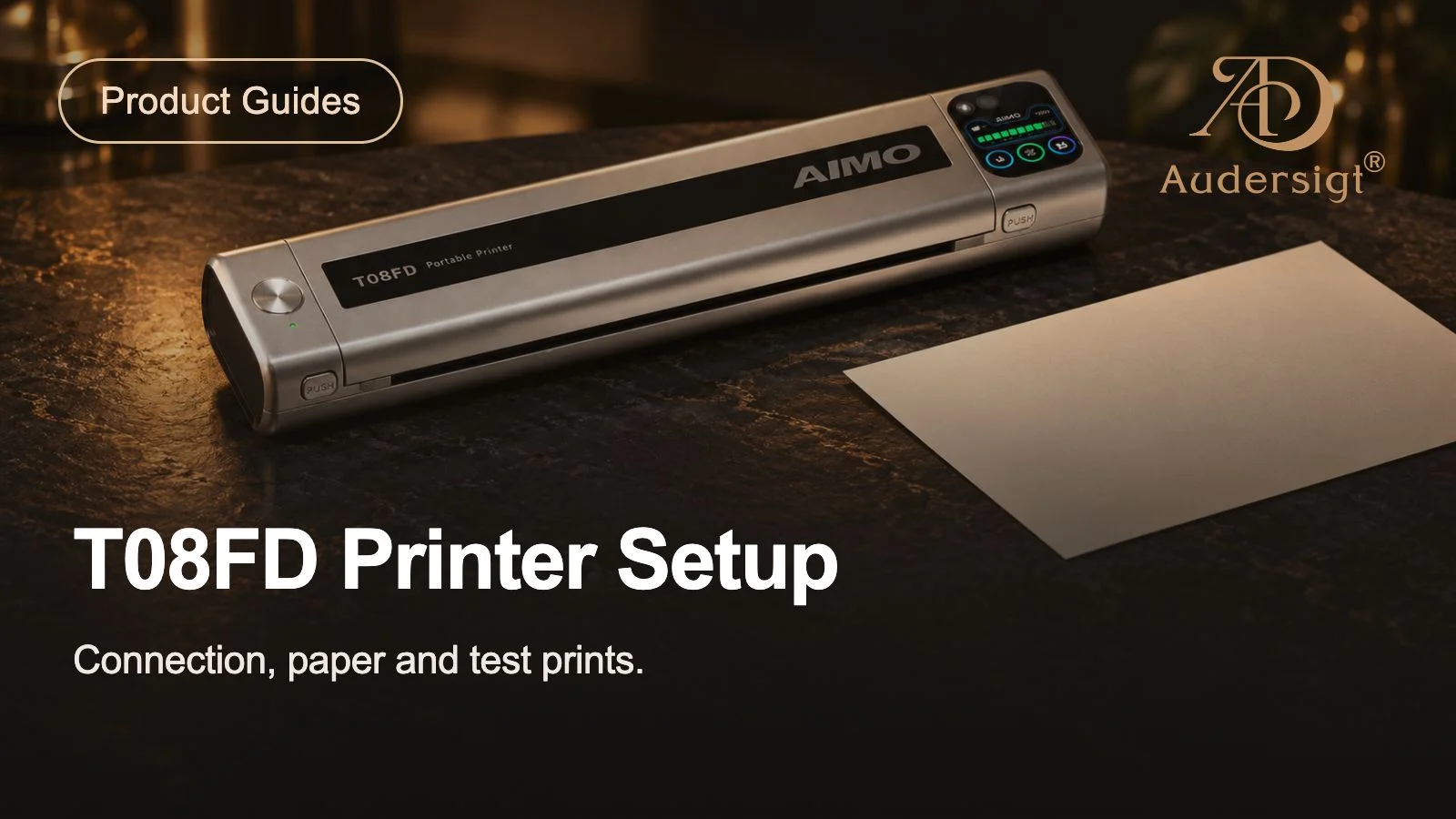
Einrichtungs- und Testanleitung für den Tattoo-Schablonendrucker T08FD
Richten Sie den Audersigt T08FD mit einer kontrollierten Datei, A4-Thermopapier, Bluetooth- oder USB-Verbindung, wiederholbaren Ausgabeprüfungen und einem Empfangsprotokoll ein.
Arbeitsablauf zur Vorbereitung eines Tattoo-Termins
Erstellen Sie einen wiederholbaren Arbeitsablauf zur Vorbereitung von Tattoo-Terminen, der Buchungsbestätigung, Designsperre, Stationsplanung, Kundenkommunikation und Kontrollen am Tag umfasst.