
Tattoo Stencil Printing Workflow: Files, Paper and Output Checks
Audersigt Team·6 min read

A repeatable tattoo stencil printing workflow starts with an approved file at a known size, a documented printer connection and the paper specified for that model. Check the printed result before handing it into the studio's application procedure. Changing several settings at once makes a poor print harder to diagnose.
This guide covers file preparation, printing and equipment records. Skin preparation, application products and tattooing remain governed by their instructions and the studio's professional procedures. For selecting equipment, read the stencil printer buying guide; for the T08FD, use its model-specific setup guide.
Confirm the approved file
Save a clearly named version of the design and record the intended printed width and height. Check that it contains the lines and details intended for the stencil rather than relying on a compressed screenshot or an unapproved draft.
Keep the original artwork separate from a printing version. If contrast, line visibility or layout needs adjustment, preserve the approved design and record the printing changes. Do not let an application silently crop, mirror or scale the file without a review of the output.
For lettering or an asymmetric design, include an orientation check in the review. The correct setting depends on the file and the printing/application route; “always mirror” is not a reliable instruction for every workflow.
Record the printer and source device
Write down the printer model, phone/tablet/computer, operating system, application or driver version, connection method and file format. These details matter when an update changes the available settings or a second artist repeats the job.
Follow the manufacturer's documented connection route. For example, the current Audersigt T08FD information distinguishes Bluetooth use with a phone or tablet from USB use with a computer. A Bluetooth feature is not a guarantee that a printer supports every desktop Bluetooth workflow, and a USB charging connection is not automatically a data connection on every model.
Use the T08FD product record or the exact printer's own instructions to confirm supported software and devices.
Confirm the paper before loading
Check the printer's supported paper type, dimensions, sheet or roll format and loading instructions. Thermal transfer, hand-tracing and other printing media should not be assumed interchangeable. Paper labeled for machine printing only should not be presented as a hand-drawing product.
Keep the paper product code with the printer record. If a listing contains inconsistent dimensions, resolve the actual sheet size with the supplier before establishing a preset. Do not force a sheet or roll into a feed path because its label seems close enough.
Follow the paper supplier's storage instructions. Protect the supply from conditions that its packaging or documentation identifies as unsuitable, and keep test supplies identifiable when comparing different products.
Print a known reference file
Prepare a simple original file with a measured border, horizontal and vertical reference lines, curves, spacing examples and an orientation label. Record its intended dimensions. Use the same file and paper when comparing settings so the change being evaluated remains clear.
After printing, inspect the entire sheet. Measure the reference dimensions, check that the expected content is present, and look for skew, missing segments or inconsistent output. Record the settings actually available on the model; do not assume every printer exposes density, speed or image-mode controls.
Save an accepted reference print or photograph with the settings record. This is a suggested process for building the studio's own evidence, not a claim that Audersigt has already tested a particular unit, application or paper combination.
Troubleshoot by observation
| Observation | Checks to make before changing settings | Useful record for support |
|---|---|---|
| Printed size differs from the file | Page size, scaling, margins and export dimensions | Expected and measured dimensions, application version |
| Design appears reversed or rotated | Source file and orientation settings at each step | File preview and output photograph |
| Output is faint or uneven | Supported paper, loading direction, power status and manufacturer troubleshooting instructions | Paper code, settings and a full-sheet photo |
| Paper feeds at an angle | Loading position and unobstructed feed path, following the manual | Photo showing the loading arrangement |
| Device cannot send the job | Supported connection route, software, cable where required and displayed errors | Exact model, operating system and error text |
These are checks, not universal diagnoses. A faint print does not prove that density must be increased, and a failed connection does not prove the printer is defective. Change one relevant variable, repeat the reference file and record what changed. Stop if the instructions call for service or if there is visible damage.
Hand the print into the studio procedure
Before application, confirm the approved design, size, orientation and completeness with the responsible artist. Keep printing and file-handling steps consistent with the studio's separation of clean supplies and active work areas.
Use the application product's instructions and the studio's professional process for preparation, application, setting time and removal. This article does not supply a universal drying time, removal chemical or method for reusing a transfer sheet. An instruction for one product should not be generalized to another.
For multi-sheet designs, review the joins and intended alignment before printing the final set. Label versions and pages so a later revision is not mixed with an earlier one. Any change to the approved design or placement belongs in the artist's review process.
Maintain the printer according to its manual
Use only the cleaning methods, access points and service steps specified for the model. Do not apply a generic solvent, immerse components or disassemble a printer based on advice written for another device.
Keep the printer's documentation and support contact with the equipment record. When output changes, compare it with the accepted reference and note whether paper, software, device, settings or the printer itself has changed. That history is more useful to support than repeated undocumented adjustments.
Keep a short preset record
A shared record can contain:
- Printer model and received configuration.
- Source device, software and connection route.
- Approved test-file name and expected dimensions.
- Paper product code and loading reference.
- Settings used for the accepted print.
- Result, date and person who checked it.
- Any unresolved issue and support response.
Recheck the record when the relevant hardware, software or supplies change. A preset is a documented starting point for that combination, not a promise of identical output under every condition.
Complete the setup
Browse printers and transfer supplies with the exact compatibility requirements in hand. Keep printers, paper and application supplies as separate purchasing lines so an accessory price cannot be mistaken for the price of a complete machine. The X6 and T08FD comparison covers model selection; this workflow records what happens after the model has been chosen.
Related resources
Tattoo stencil printersT08FD printerX6 printerCommon questions
What should I compare between tattoo stencil printers?
Compare supported paper, maximum print width, resolution, connection methods, battery, charging, dimensions, controls, included items, and the studio's actual phone, tablet, or computer workflow.
Why test a stencil printer with a known file?
A known line, curve, spacing, and shaded-detail file makes it easier to compare scaling, orientation, transfer clarity, paper handling, and repeatability without changing the artwork between tests.
Find your next tattoo setup
Shop productsRelated Articles
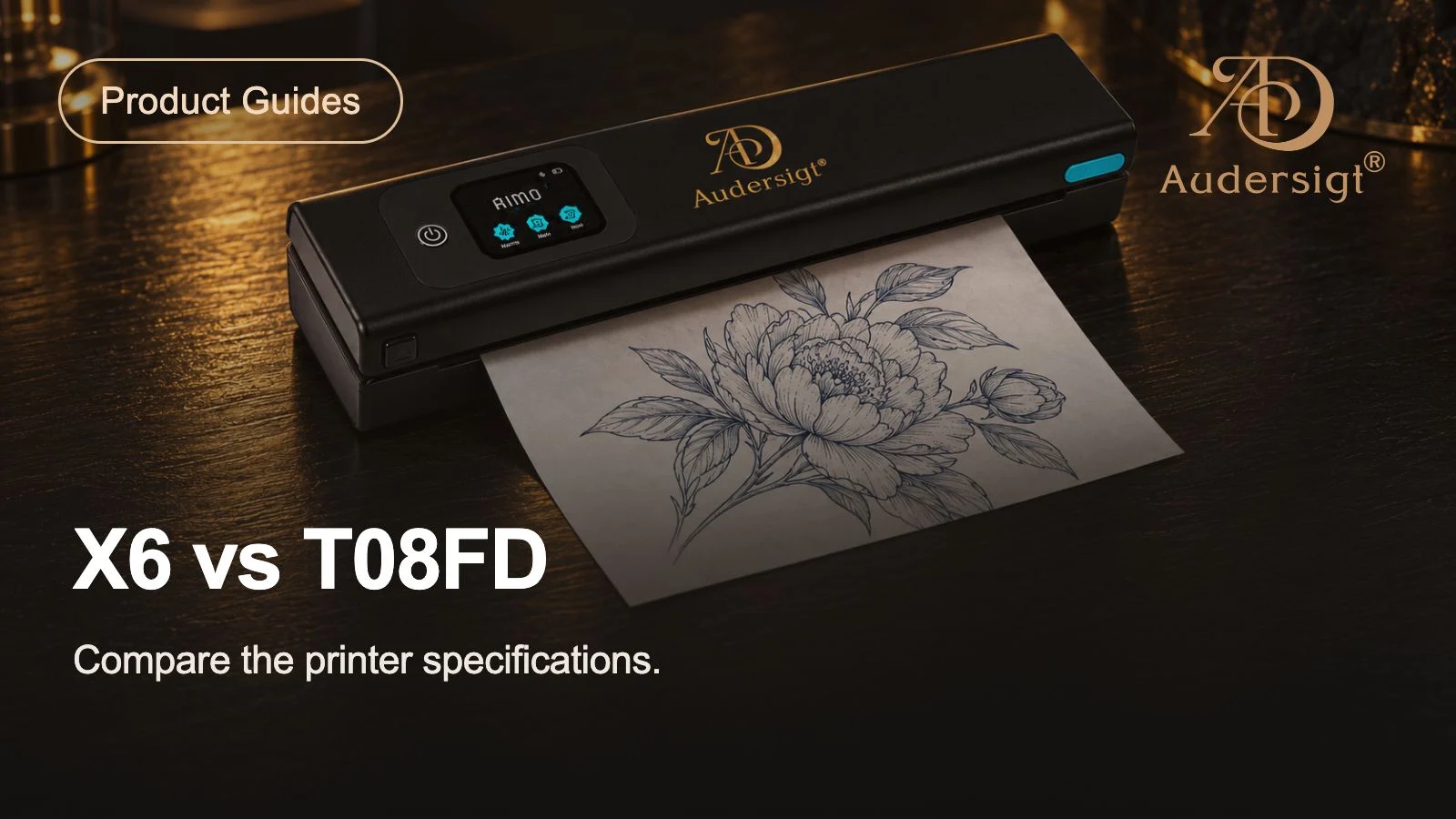
Best Tattoo Stencil Printers: X6 vs T08FD
Compare the Audersigt X6 and T08FD tattoo stencil printers by paper support, connectivity, battery, controls, size, and real studio workflow.
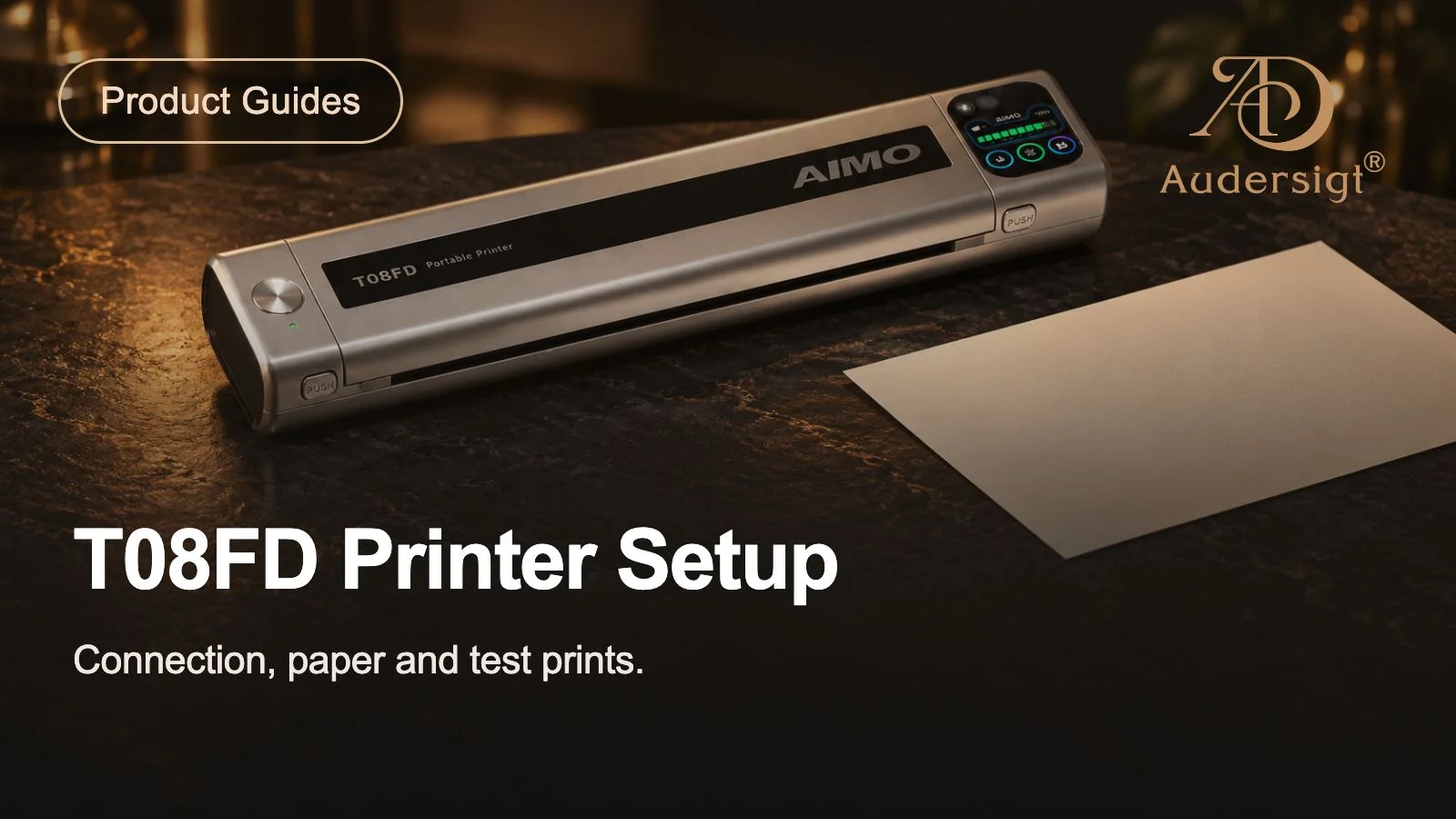
T08FD Tattoo Stencil Printer Setup and Test Guide
Set up the Audersigt T08FD with a controlled file, A4 thermal paper, Bluetooth or USB connection, repeatable output checks, and a receiving record.

Tattoo Appointment Prep Workflow
Build a repeatable tattoo appointment preparation workflow covering booking confirmation, design lock, station planning, client communication, and day-of checks.